What Is the xhamster2.com Detection?
xhamster2.com is a potentially unwanted program (PUP). This is a type of software that is not necessarily malicious, but may have undesirable and potentially dangerous effects on your computer. xhamster2.com is ad-supported and could also act as a browser hijacker by changing your browser’s settings without your your knowledge or consent. These programs can be intrusive and can slow down computer performance, display unwanted advertisements, or redirect you to malicious websites. Daarnaast, PUPs such as xhamster2.com can compromise your online security or personal information.What Does xhamster2.com Do?
xhamster2.com is a suspicious site and application mainly used to capture personal information from users for advertising revenue.Het is compatibel met de meest gebruikte browsers zoals Internet Explorer, Google Chrome en Mozilla Firefox. Bij de installatie, it is likely that it will alter your browser’s settings and change your default home page to its own.
xhamster2.com may cause redirects to suspicious and scamming pages. Interacting with any of the content xhamster2.com provides is not advisable, as it may expose you at various risks.Eenmaal geïnstalleerd, xhamster2.com may start displaying advertisements and sponsored links in your search results, and may disturb your browsing habits. En, door te klikken op een van deze advertenties, u uw computer bloot aan risico weer.
The worst part about this browser hijacker is that it uses tracking technology to monitor your browsing behavior and record that information along with other personal information, such as usernames, e-mails, etc. This data may then be sold to third parties, such as advertising agencies, aiming to improve their targeting and display custom ads in accordance with your searches.
| Threat Detection | xhamster2.com |
| Type | Browser Redirect Alerts |
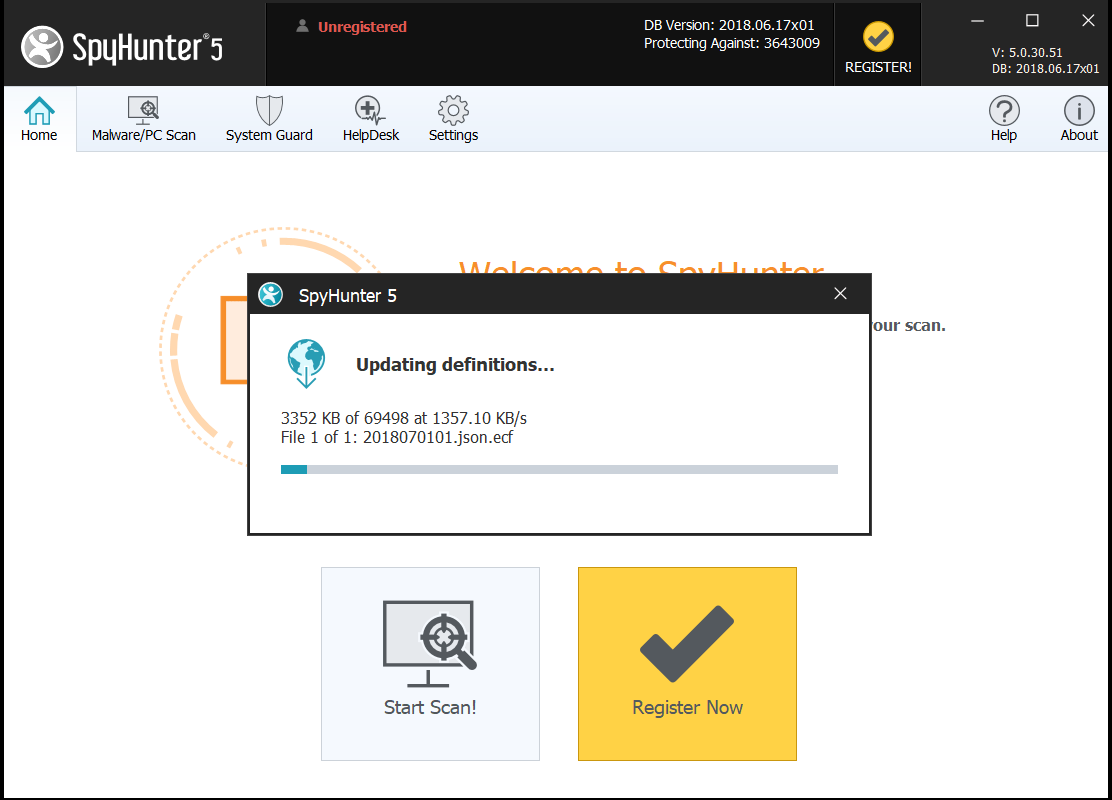
| Detection + Removal | Download SpyHunter (FREE Trial!)*
|
How Did xhamster2.com Enter Your PC?
Meestal, unwanted software such as xhamster2.com enters your PC bundled with freeware you download. That is why you must always pay attention when installing any software. Bundled software usually is mentioned in the installation process, en je krijgt de mogelijkheid om te kiezen uit het.
Note that bundling is a popular method used by the creators of adware and malicious software because they are aware that users rarely read everything during the installation. Adware developers intentionally create “aanbevolen” installation settings. Daarom, om veilig te zijn, gewoon de aanbevolen instellingen verbieden en kies de “gevorderd” of “gewoonte” optie in plaats.
How to Check Your Browser and PC if You Keep Seeing xhamster2.com
If this domain keeps appearing, work through these steps in order before running a full scan. They remove the most common causes of repeated redirects and pop-ups.
Stap 1: Stop notification spam
- Chrome: Instellingen → Privacy and security → Site settings → meldingen. Remove every site you do not recognise from the “Allowed to send notifications” lijst.
- Rand: Instellingen → Cookies and site permissions → meldingen. Remove unknown sites from the “Allow” lijst.
- Firefox: Instellingen → Privacy & Veiligheid → Permissions → meldingen → Instellingen. Remove unknown sites.
Stap 2: Remove unknown browser extensions
- Open your browser’s extensions page (Chrome:
chrome://extensions, Rand:edge://extensions, Firefox:about:addons). - Remove anything you did not install on purpose, or that you do not remember adding.
- Restart the browser and check whether the redirects continue.
Stap 3: Uninstall recently added programs
- Open Windows Settings → Apps → Installed apps and sort by install date.
- Uninstall programs you do not recognise that appeared around the time the problem started, especially free converters, “download managers” en “video players”.
Stap 4: Reset browser settings
- Check your home page, default search engine and new-tab page. Restore them if they were changed.
- If the redirects persist, use the browser’s built-in “Reset settings” optie (Chrome and Edge: Instellingen → Reset settings).
Stap 5: Change passwords if you entered any data
If you typed a password, card number or personal data on a page you were redirected to, change that password from a clean device and review the account’s recent activity.
Quick checklist: signs that redirects are not just a “bad website”
- Pop-ups or new tabs appear even when you are on sites you normally trust.
- Your search engine or home page changed without your action.
- Browser notifications appear while the browser is closed or minimised.
- The same unwanted page returns after you close the tab and restart the browser.
If these signs remain after Steps 1-4, the cause is likely an installed program rather than a single website, and a full anti-malware scan is justified.
How to Remove xhamster2.com?
In case you already have the xhamster2.com detection on your computer, don’t worry as there is an easy way to remove it. Follow the instructions below to install a trustworthy anti-malware program that will take care of the removal process for you. Manual instructions are also provided for tech-savvy users.
Preparation before removal of xhamster2.com:
1.Zorg ervoor dat u back-up van uw bestanden.
2.Zorg ervoor dat u deze pagina instructies altijd open, zodat u de stappen kunt volgen.
3.Wees geduldig als de verwijdering enige tijd duren.
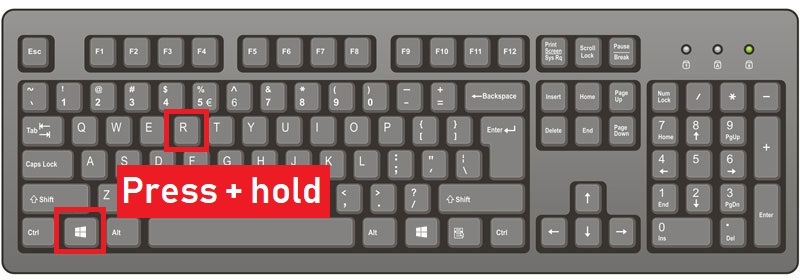
Stap 1: Start de computer opnieuw in de veilige modus:
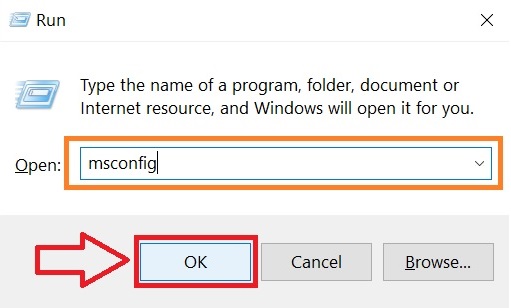
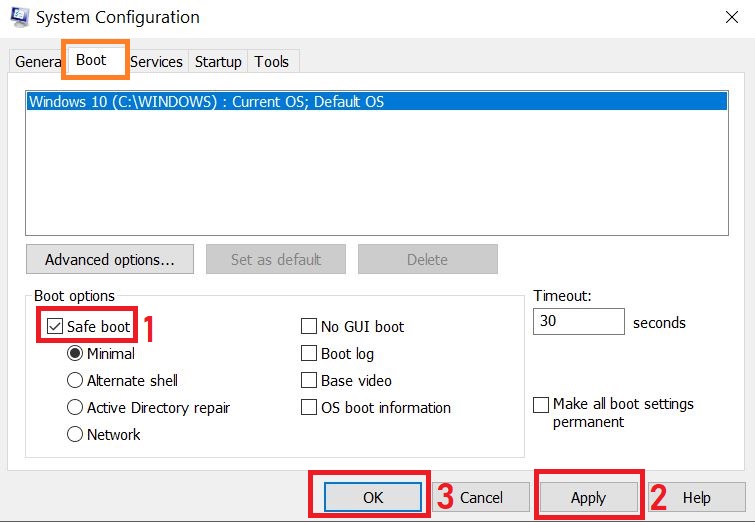
Stap 2: Cut out xhamster2.com in Task Manager
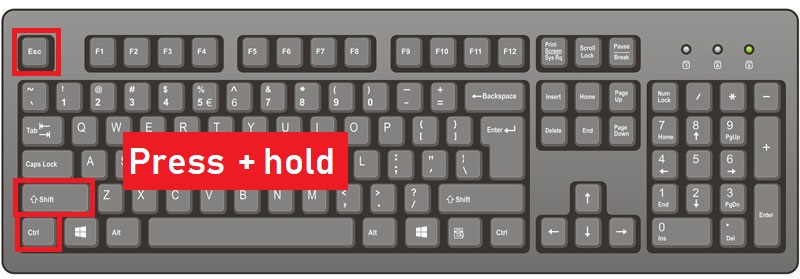
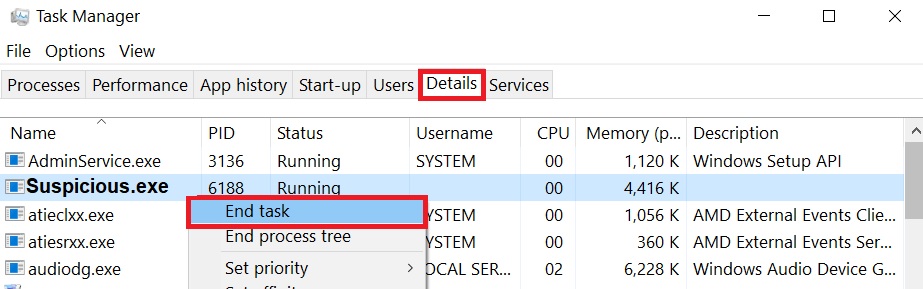
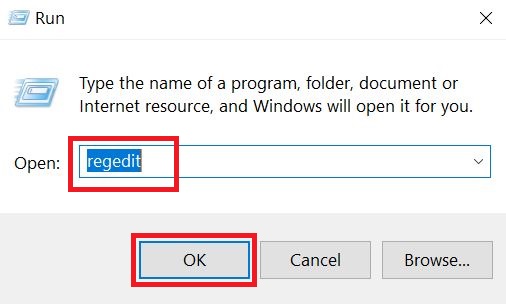
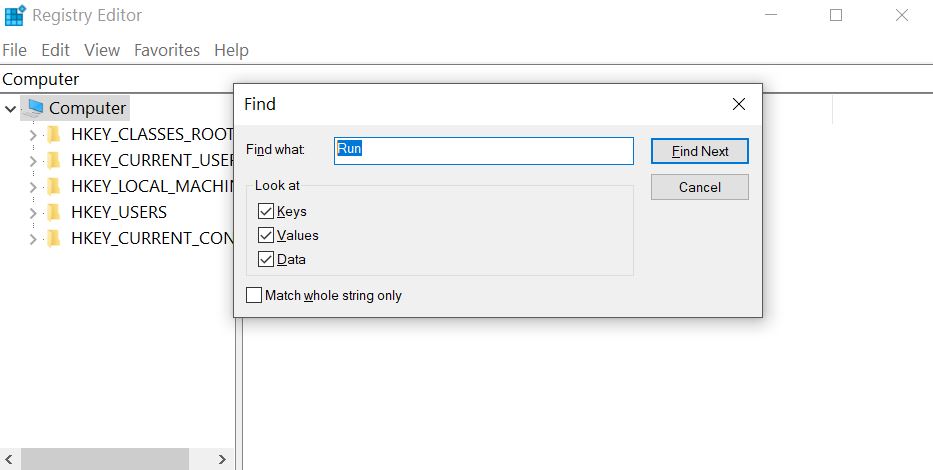
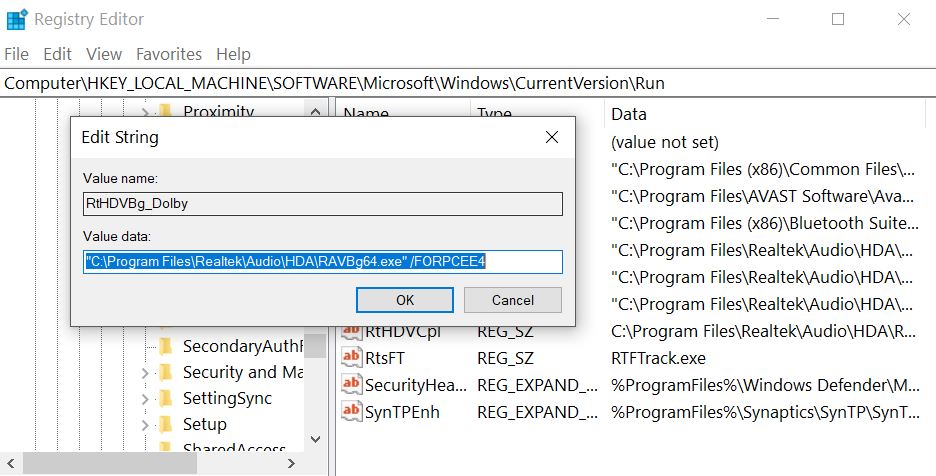
Stap 3: Eliminate xhamster2.com‘s Malicious Registries.
Voor de meeste Windows-varianten:
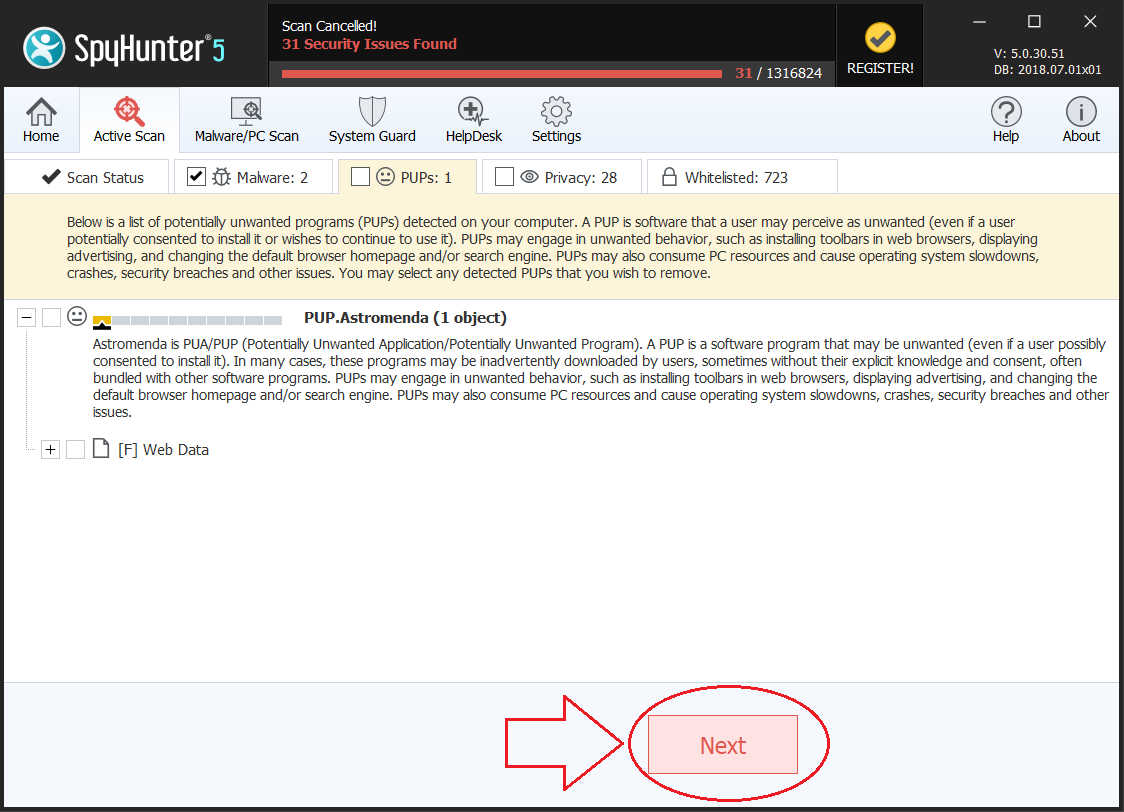
Stap 4: Scannen op alle virusbestanden, related to xhamster2.com and secure your system.
Als u in Veilige modus, laars terug in de normale modus en volg de onderstaande stappen
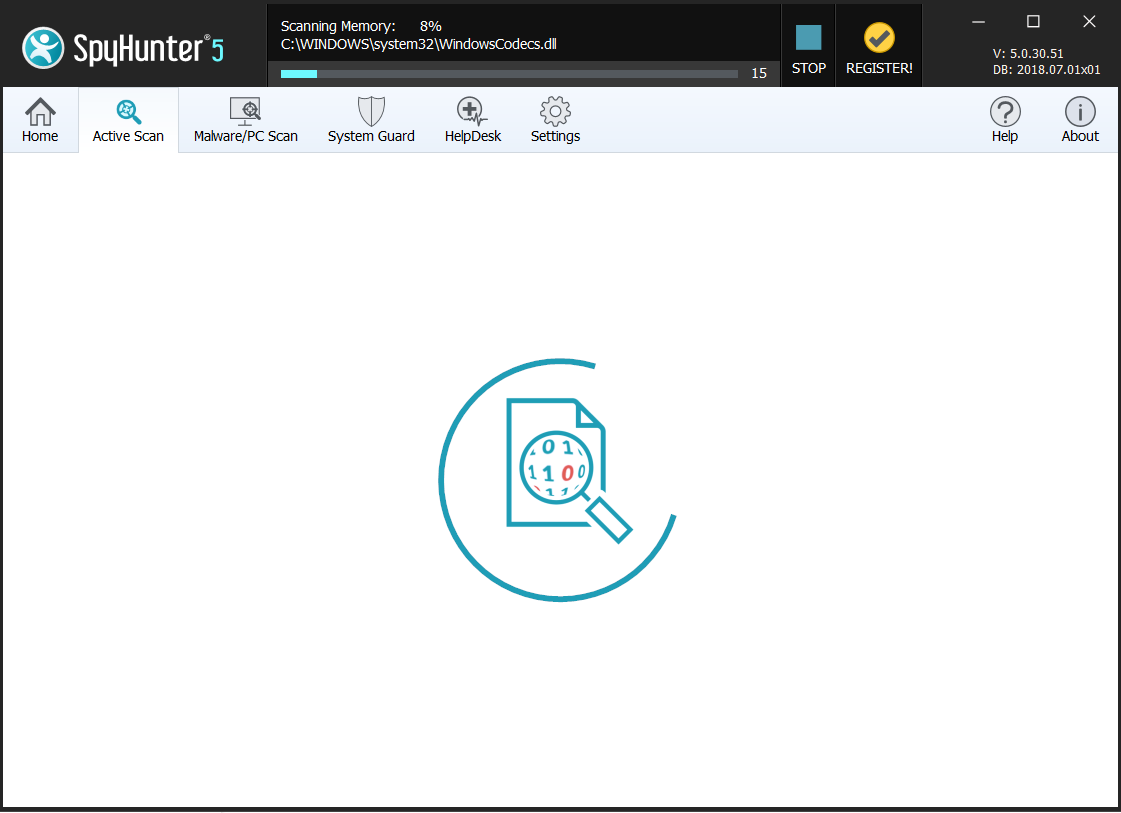
Het is raadzaam om een gratis scan uit te voeren voor het plegen van de volledige versie. Je moet ervoor zorgen dat de malware voor het eerst wordt gedetecteerd door SpyHunter.